Sysmon in Cyber Defense: Enhancing Threat Visibility
Sysmon, short for System Monitor, is a Windows system service and driver provided by Microsoft’s Sysinternals suite. It logs detailed information about system activity to the Windows Event Log, which is far beyond what standard logging offers.
With Sysmon, you can track things like process creation, network connections, file changes, and registry modifications, along with important context such as parent processes, command-line arguments, file hashes, and more.
In short, Sysmon helps you understand not just what happened on a system, but how and why it happened, making it a powerful tool for threat detection, incident response, and security investigations.
Let’s say a trusted Windows process like svchost.exe suddenly makes a connection to an unknown IP address. If you're only using the built-in Event Viewer, you might just see that svchost.exe ran. But what you won't see is that it was actually triggered by a hidden PowerShell script placed in a temporary folder, and that it’s behaving differently than usual. This is where Sysmon (System Monitor) changes the game.
It doesn’t just tell you that something ran, but also shows how it started, what command was used, and where it tried to connect. In other words, Sysmon turns basic logs into detailed stories. These stories help defenders understand if an action was normal, suspicious, or a clear sign of an attack.
Let's understand in detail here.
What is System Monitor?
Sysmon, or System Monitor, is a part of Microsoft’s Sysinternals Suite, designed to provide advanced system monitoring and logging for Windows operating systems.
How does Sysmon work?
To understand how Sysmon works, first, let’s break it down into its main components
1. Sysmon Executable (Sysmon.exe)
This is the primary executable used to:
- Install Sysmon as a service
- Configure its behavior using an XML configuration file
- Update or remove the service
A] Sysmon.exe -accepteula -i sysmonconfig.xml # Install with config
B] Sysmon.exe -u # Uninstall Sysmon
C] Sysmon.exe -c sysmonconfig.xml # Update config
2. The Sysmon Service
Once installed, Sysmon runs silently in the background as a Windows service (Sysmon64), collecting and logging system activity based on the rules in its configuration.
- Runs at startup
- Cannot be easily disabled by normal users
- Provides real-time logging to the Event Log
This service is responsible for monitoring and generating events whenever certain activities occur (e.g., process creation, network connection, file changes, etc.).
3. The Configuration File (sysmonconfig.xml)
Sysmon uses an XML configuration file to define what to log and what to ignore. The configuration allows you to:
- Include/exclude specific processes or patterns
- Filter noisy or safe events
- Focus on attacker behaviors (TTPs)
4. Sysmon Event Logs
Sysmon sends all its logs to the Windows Event Log, specifically:
Applications and Services Logs → Microsoft → Windows → Sysmon → Operational
Each event is tagged with a unique Event ID, helping analysts quickly identify what type of activity occurred.
Why These Components Matter
- The executable lets you deploy and manage Sysmon
- The service works silently to monitor the system in real time
- The config file controls what matters to you
- The event logs are your source of truth for incident detection and response
Together, they form a lightweight but powerful monitoring system that gives defenders the depth of visibility needed to catch stealthy attacks.
Now that we understand what Sysmon is and how its components work, the next step is to get it up and running on your system. Installing Sysmon is simple, but to get the most value from it, you’ll want to use a proper configuration file during setup. Below is a script you can use to install Sysmon.
# Define Sysmon download URL
 $sysmonUrl = "https://download.sysinternals.com/files/Sysmon.zip"
 $downloadPath = "$env:TEMP\Sysmon.zip"
 $extractPath = "$env:TEMP\Sysmon"
 $sysmonConfig = "$extractPath\sysmon-config.xml"

 # Download Sysmon ZIP
 Write-Host "Downloading Sysmon..."
 Invoke-WebRequest -Uri $sysmonUrl -OutFile $downloadPath

 # Create extraction directory if not exists
 if (!(Test-Path $extractPath)) {
     New-Item -ItemType Directory -Path $extractPath | Out-Null
 }

 # Extract ZIP file
 Write-Host "Extracting Sysmon..."
 Expand-Archive -Path $downloadPath -DestinationPath $extractPath -Force

 # Verify Sysmon.exe exists
 if (Test-Path "$extractPath\Sysmon64.exe") {
     Write-Host "Sysmon extracted successfully."
 } else {
     Write-Host "Sysmon extraction failed!" -ForegroundColor Red
     exit 1
 }

 # Download default Sysmon configuration (SwiftOnSecurity's recommended config)
 Write-Host "Downloading Sysmon configuration..."
 Invoke-WebRequest -Uri "https://raw.githubusercontent.com/SwiftOnSecurity/sysmon-config/master/sysmonconfig-export.xml" -OutFile $sysmonConfig

 # Install Sysmon with configuration
 Write-Host "Installing Sysmon..."
 Start-Process -FilePath "$extractPath\Sysmon64.exe" -ArgumentList "-accepteula -i $sysmonConfig" -NoNewWindow -Wait

 # Check Sysmon service status
 Write-Host "Verifying Sysmon installation..."
 $sysmonStatus = Get-Service -Name "Sysmon64" -ErrorAction SilentlyContinue

 if ($sysmonStatus.Status -eq "Running") {
     Write-Host "Sysmon successfully installed and running!" -ForegroundColor Green
 } else {
     Write-Host "Sysmon installation failed!" -ForegroundColor Red
 }

 # Cleanup (optional)
 Remove-Item -Path $downloadPath -Force
 Write-Host "Cleanup complete."
Where can you locate Sysmon Logs within a Window System?
Once Sysmon is installed and running, it begins logging detailed event data immediately. But unlike regular Windows logs (like Security or System), Sysmon writes its events to a separate, dedicated log location in the Event Viewer.
Sysmon Log Location:
You can view the logs by navigating to:
Event Viewer → Applications and Services Logs → Microsoft → Windows → Sysmon → Operational 
What You'll See Inside:
Once there, you’ll find entries with:
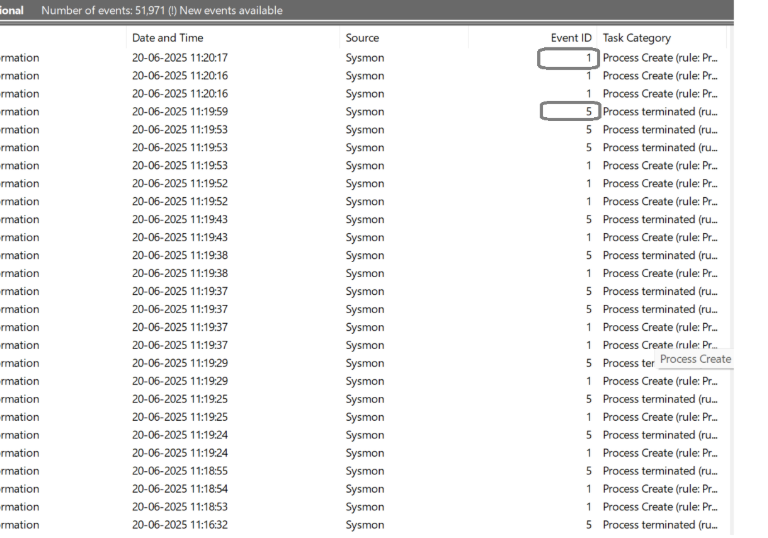
- Event IDs (e.g., 1 for process creation, 3 for network connection)
- Timestamps
- Usernames
- Full paths and command lines
- IP addresses, file hashes, registry keys, and more
This is where Sysmon becomes your forensic goldmine. Every entry tells part of the story of what’s happening (or has happened) on your system.
Filter for Key Events
To make analysis easier, you can use the "Filter Current Log" option in the right-hand panel to:
- Only show specific Event IDs (like 1 or 3)
- Narrow by keywords (e.g., PowerShell, cmd.exe, etc.)
High-Priority Sysmon Event IDs
Sysmon generates many different types of events, but not all are equally important when it comes to detecting threats or suspicious activity. Here are the most critical Event IDs you should focus on first, because they offer the most value for defenders and threat hunters.
Event ID 1 – Process Creation :
Logs every time a new process starts.
Why it’s important: It Helps detect suspicious processes, parent-child relationships, and unusual command-line arguments
Event ID 3 – Network Connection
Tracks outbound network connections made by processes.
Why it's important: Useful for detecting C2 communication, data exfiltration attempts, or unexpected external connections from trusted applications.
Event ID 11 – File Creation
Records when a new file is created in a monitored location.
Why it's important: Attackers often drop payloads or scripts during execution. This helps you catch malware or suspicious files as they land.
Event ID 13 – Registry Value Set
Logs when a registry value is created or modified.
Why it's important: Commonly used in persistence mechanisms (like autoruns), as well as system configuration tampering by malware.
Event ID 7 – Image Loaded
Tracks DLLs and drivers loaded by processes.
Why it's important: Useful for spotting code injection, DLL sideloading, or loading of unsigned/suspicious binaries.
Detection Use Cases & Real-World Attack Patterns
Reading logs is one thing. Reacting to them is where true detection power lies.
Now that you're familiar with the most valuable Sysmon events, it's time to turn those events into actionable detection logic.
Sysmon shines when it comes to identifying suspicious behaviors that traditional Windows logs often miss. By utilizing key Sysmon Event IDs such as process creation, registry modifications, and image loading, blue teams can apply targeted filters to develop high-fidelity detection rules with greater precision.
This approach becomes especially powerful when you step into the world of detection engineering, where the focus shifts to writing custom rules that identify attacker behaviors rather than relying solely on known signatures. Tools like Sigma, when paired with Sysmon data, let you define logic once and reuse it across SIEM solutions.
Whether you're writing your first detection rule or refining an entire threat-hunting stack, Sysmon is the perfect foundation. It gives defenders not just visibility, but the context. For the blue team, context is everything.
How can Sysmon be leveraged to detect and analyze real-world attack patterns?
Let’s explore some real-world attack patterns and how Sysmon helps break them down, step by step.
Use Case 1: Excel Launching PowerShell (Macro-Based Attack)
Event ID Involved: 1 – Process Creation
Attackers often use Microsoft Office documents (Excel, Word) embedded with malicious macros to trigger further execution. A tell-tale sign is excel.exe or winword.exe spawning powershell.exe or cmd.exe.
What to look for:
- Parent process: excel.exe or winword.exe
- Child process: powershell.exe, cmd.exe, mshta.exe
- Suspicious command-line arguments (e.g., encoded strings)
Detection Logic (Sigma-style):
parent_image|endswith:

  - 'excel.exe'

  - 'winword.exe'

command_line|contains:

  - 'powershell'

- 'cmd' 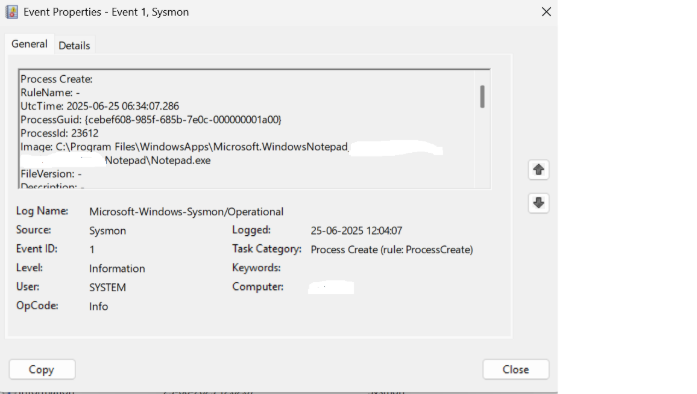
Use Case 2: Encoded PowerShell Making Outbound Connection
Event IDs Involved:
- 1 – Process Creation
- 3 – Network Connection
Obfuscated PowerShell is a favorite among attackers. If powershell.exe is launched with -enc or -EncodedCommand followed by a network connection, it's highly suspicious.
What to look for:
- powershell.exe command with -enc, -nop, -w hidden
- Remote IP address that’s unfamiliar or foreign
- Short process lifetime (quick execution)
Detection Logic:
command_line|contains:

'powershell.exe -enc'

'powershell.exe -nop'

destination_ip|is_not: 'internal IP ranges'
Use Case 3: Registry-Based Persistence
Event ID Involved: 13 – Registry Value Set
Malware often maintains persistence by adding itself to autorun registry keys, ensuring it runs every time the system starts.
What to look for:
- Registry key modified:
HKCU\Software\Microsoft\Windows\CurrentVersion\Run
HKLM\Software\Microsoft\Windows\CurrentVersion\Run
- Value pointing to executables in AppData, Temp, etc.
Detection Logic:
registry_key|contains:

  - 'CurrentVersion\\Run'

command_line|contains:

  - 'AppData'

  - 'Temp'
Use Case 4: DLL Sideloading or Unusual Image Loads
Event ID Involved: 7 – Image Loaded
If a process loads a DLL from an unexpected location — especially unsigned or user-writable directories — it may be executing attacker-controlled code.
What to look for:
- Unsigned or unknown DLLs
- DLLs loaded from %AppData%, %Temp%, or external drives
- Loaded by trusted apps (like explorer.exe, svchost.exe)
Detection Logic:
image_path|contains:

  - 'AppData'

  - 'Temp'

signature_status: 'Unsigned'
Turning Logs into Action: Create Custom Rules with Sysmon
Reading logs is one thing. Reacting to them is where true detection power lies.
Once you’ve installed Sysmon and started analyzing these detailed events, the next step is to make them work for you automatically.
By integrating Sysmon with a SIEM solution or using detection logic formats like Sigma, you can convert raw event data into real-time alerts, automated investigations, or threat hunts.
Conclusion
In a world where attackers use trusted tools and hide in plain sight, traditional logs often fall short. Sysmon steps in to bridge that gap but by revealing the full picture of what’s happening under the hood.
With the right configuration and integrations, Sysmon becomes more than just a logging tool. It is indeed a threat detection engine, capable of surfacing subtle signs of compromise, malicious persistence, and behavioral anomalies.
Whether you're investigating a breach, hunting threats, or simply strengthening your visibility, Sysmon gives you the clarity, context, and control you need.
Logs tell you what happened. Whereas Sysmon shows you how, when, and why. And in cybersecurity, that difference can stop an attacker in their tracks.

Advisory & Compliance Services
Audit & Assessment Services
Managed Security Services
Governance & Compliance Framework Development
Cyber Key Performance IndicatorsCISO Advisory
Advisory and Compliance ServicesStandard & Regulatory AdvisoryBusiness Continuity & Disaster Recovery PlanningIncident Response ReadinessData Privacy
Audit and Assessment Services
Cloud Security Assessment
Cyber Maturity Assessment
Privacy Impact Assessment
Red Teaming Service
VAPT
Managed Security Services
SOC as a Service
Third Party Risk Management
Vulnerability Management Services